LS-Auth integration with Login.gov as IDP (OIDC)
Below are instructions to set up Login.gov as an IDP for LSAuth using SAML.
NOTE: Integration will need to be done against Logn.gov sanbox env.After testing is completed. the app will be promoted to prod by Login.gov team upon request.Please follow the https://developers.login.gov/ for more info
Create an Identity Provider Configuration in LSAuth
-
Generate a X509 certificate with public private keys using openssl or keytool to be used for private_key_jwt flow
-
Log into the LS Auth console for and select the tenant that you will use.
-
Select “Providers” in the left nav menu and click the “Add New” button.
-
Select Provider Type “OpenID connect”
-
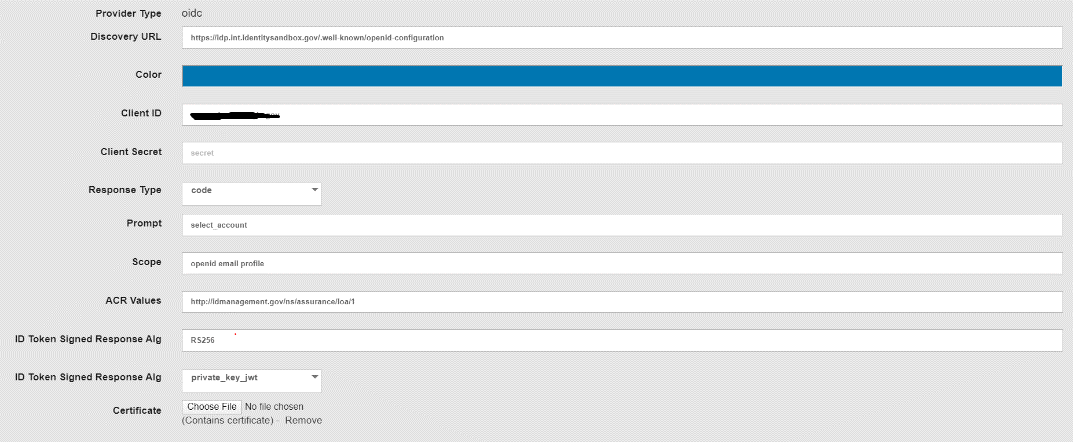
Update the following details
Discovery URL: https://idp.int.identitysandbox.gov/.well-known/openid-configuration
Client ID: Unique string (Eg format: una.xxxxxxxx)
Response Type : code
prompt: select_account
Scope: openid email profile
ACR values: http://idmanagement.gov/ns/assurance/loa/1
Token Signed Response Alg: RS256 (Dependes on the cert created above)
Token Signed Response Alg: private_key_jwt
certificate: upload cert created above
Creating application on [Login.gov]{.ul}
-
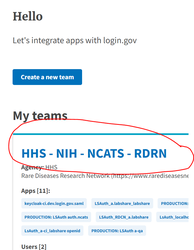
Request for admin account to Login.giv sandbox / partner dashboard following instructions in https://developers.login.gov/ (Get added to our test sandbox environment) and set up MFA for the account once its added. NOTE: For NCATS RDCRN project we are using team “HHS - NIH - NCATS - RDCRN”
-
Sign in using your admin account to https://dashboard.int.identitysandbox.gov/
-
You should see a team you are by default assigned to
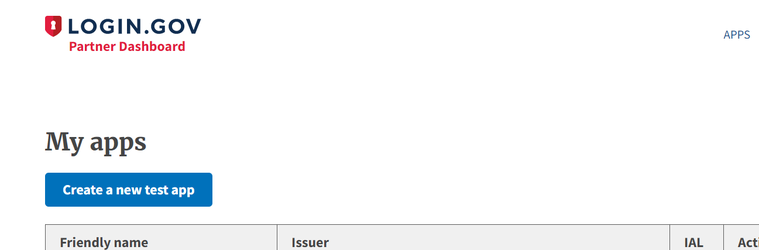
- Access “APPS” on the top right corner and click on 'Create a new test app'
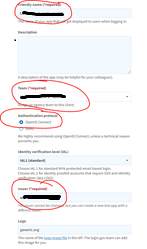
5. Enter the App details Eg: shown below (Select a different name), Select Authentication protocol as OpenID Connect. Issue has to be same as the “ClientID” configured above in LSAuth .
6. Enter the public key generated above for LSAuth (Used for signing the JWT on LSAuth).
Enter the Redirect URL same as LSAuth callback URL accordingly from LS-Auth: Quick Links
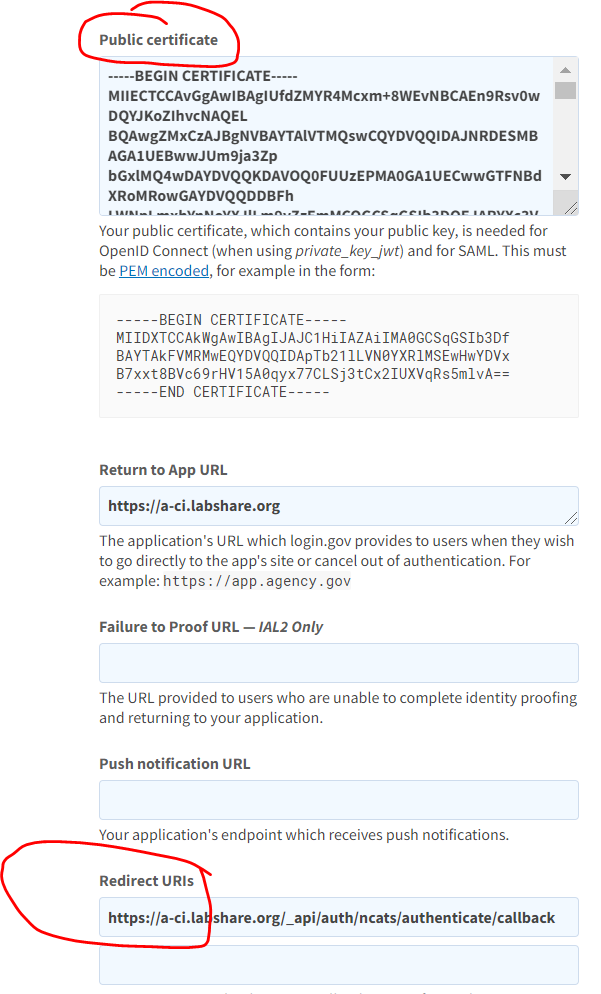
7. Save the application.